
Author: duponam
On July 19, 2026, the last in-person meeting of the Erasmus+Sport Collaborative Parnership Discovering University Sport and Supporting Dual Career (DiscoverU) was organized in Salerno during the 2026 EUSA Games.

Coordinated by the European University Sports Association (EUSA) Institute, the consortium encompassed the European Athlete Student (EAS) network, the Croatian Academic Sports Federation (CASF / HASS), the Hungarian University Sports Federation (HUSF / MEFS), the University Sports Association of Poland (AZS), and the University of Salerno (Italy) in cooperation with CUS Salerno.

During the 3-year of the project life course, European university sports administrators and dual-career experts aimed to promote healthy academic lifestyles by introducing new sports activities and to support the dual career of student athletes reinforcing the university systems.
In Salerno, partners reviewed the local sport activities and the events initiated and progressed during the project, highlighted the evolution of the university dual career systems at national levels, and fine-tuned upcoming project deliverables.
The participants had also the opportunity to attend the EUSA Forum and the Opening Ceremony of the 2026 EUSA Games.

The DiscoverU project is funded by the European Union. Views and opinions expressed are however those of the author(s) only and do not necessarily reflect those of the European Union or the European Education and Culture Executive Agency (EACEA). Neither the European Union nor EACEA can be held responsible for them.
 On July 20, 2026, the University of Salerno (Unisa) hosted a panel on Student-Athletes and Dual Career, within the framework of the European University Games 2026. After offering a concise overview of European approaches to dual career, personalized academic pathways, and the psychological and institutional conditions that support student-athletes, Prof. Francesca D’Elia (Unisa) moderated the panel of leading experts in sport policy, higher education, and wellbeing.
Laura Capranica (EAS President) highlighted the European policy framework connecting sport, education, and health. She emphasized cooperation among institutions, cultural diversity across Member States, and the need for structured dialogue between sport and education stakeholders. Speciafically for the University context, she highlighted the relevance of the European cooperation projects Give Sport a Say under the Citizens, Equality, Rights and Values (CERV), and the Collaborative Partnerships DiscoverU, Edmedia, Find Me, More Than Gold, and Runners4All under the ERASMUS+Sport.
Andreas Csonka (EUSA EUSA Executive Committee Member) framed dual career as a wellbeing, education, and talent policy, stressing predictable flexibility, full academic choice, and institutional reliability. He underlined the role of EUSA in enforcing the European principles: flexibility in models, consistency in outcomes, and no forced dropout.
Gaetano Raiola (Pegaso University) presented the transition from the school Personalized Learning Pathway (PFP) to university dual career programs. He illustrated regulatory tools, flexible exam scheduling, tutoring schemes, and the recognition of certified sporting activities through Italian Ministerial Decree 931/2024, enabling coherent and personalized academic pathways.
Ruggero Andrisano Ruggieri (Unisa) explored the psychological dimension of dual career through the “Double Family” construct, describing relational tensions between family, sport, and university. He proposed the university as a third space supporting autonomy, coordination, and wellbeing through mapping, clarification, direct communication, and monitoring.
Antonella Apicella, Captain of Salernitana Women Soccer Team, presented the challenges and opportunities of a university student-athlete, offering further for the implementation of dual career support policies and provisions.

The discussion reinforced a shared message: dual career requires coordinated systems, personalized pathways, and attention to wellbeing. The University of Salerno expressed its commitment to advancing dual career initiatives and exploring a dedicated institutional regulation aligned with European recommendations and the mission of EAS and EUSA.
The DiscoverU, EdMedia, Find Me, Give Sport a Say, More Than Gold, and Runners4All projects are funded by the European Union. Views and opinions expressed are however those of the author(s) only and do not necessarily reflect those of the European Union or the European Education and Culture Executive Agency (EACEA). Neither the European Union nor EACEA can be held responsible for them.
On July 18 2026, the University of Salerno in cooperation with CUS Salerno hosted the 2026 EUSA Forum “Empowering University Sport: Grassroots & Innovation” attended by representatives from universities, university sports organisations, and international partners who have the responsibility to enhance the impact of sports knowledge and best practices to foster healthy lifestyles in the academic environments and the society at large.
The President of EUSA, Mr. Haris Pavletic, welcomed the participants and presented the EUSA’s 2025-2029 strategic vision, particularly focused on the development of the students’ health, education, and personal development in and through sport. The University of Salerno Rector, Prof. Virgilio D’Antonio, and the President of CUS Salerno, Mr. Lorenzo Lentini, emphasized their satisfaction in hosting the EUSA Games for the first time in Italy, which could promote a strong legacy for enhancing physical activity and healthy behaviours in the Campania population.

The keynote speech of Mr. Antonio Parrilla, Italy’s Representative at the Council of Europe’s EPAS Governing Board Bureau, presented the relevance of the Revised European Sports Charter and its values of integrity, inclusion, and human dignity, which should be supported by institutional responsibility and structural funding.
The Forum encompassed two panel discussions. The first panel focused the future of inclusive and sustainable university sport with the contribution of Mr. Vincenzo Cusati, Sport Educator and Mental Coach from CUS Salerno, Mr. Peter Juhasz, Secretary General of the Hungarian University Sports Federation (MEFS), Mrs. Marija Panijan from the Croatian Academic Sports Federation, Mrs. Marianna Pikul from the University Sports Association of Poland (AZS), and Mr. Liam Smith, EUSA Director of Sports Events, moderated by Mr. Andrej Pisl EUSA Director of Projects & Policy. The discussion presented the importance of innovation, supportive policy frameworks, scientific data and international cooperation for enhancing grassroots sport engagement of the majority of sedentary university students and for preventing academic or sport dropout of athletes through dual career programmes.

The second panel focused on the strengthening the long-term impact of university sport through institutional cooperation with the contribution of Prof. Francesco Paolo Adorno, Rector’s Delegate for University Sports Policy and Relations with CUS at the University of Salerno, Mr. Bruno Barracosa, EUSA 1st Vice-President and former President of the Portuguese University Sports Federation, Prof. Laura Capranica, President of the European Athlete Student (EAS) network, Mr. Leonz Eder, President of the International University Sports Federation (FISU), and Mr. Philippe Housiaux, President of the European Fair Play Movement (EFPM), moderated by Mr. Andreas Csonka, EUSA Executive Committee Member. Key themes explored the needs of students in a fast changing society, the effective approaches to elicit active lifestyles in the academic environment, the cooperation of different stakeholders in sharing visions and responsibilities, and the importance to monitor progress. The relevance of monitoring the efficacy of policies and services for allowing students to combine sport, study, and social life was highlighted, as well as the need of cooperation to share best practices across Europe for enhancing fair play, safeguarding, ethical governance, and supportive environments.
Ledger Live Mac Cannot Be Opened: Recover From a Startup Stall Safely
Resolve Ledger Live Mac Cannot Be Opened complaints by matching the symptom to its layer: a security quarantine block, an orphaned background process, or a device handshake that fails after the window renders. Each layer leaves a different trace on screen, and the trace tells you which check to run first. The whole sequence takes minutes and never requires a recovery phrase or a device reset.
The sections below move from mechanism to comparison to verification, and every claim that depends on a version number is pointed at the vendor’s published page rather than asserted here.
Why the Desktop Client Stalls Before Its Window Renders
Four mechanisms account for nearly every stalled start: an operating-system quarantine flag, a stale background process, an unsupported system build, and a corrupted local data folder. Each leaves a different trace, and identifying the trace first prevents reinstalling an application that was never the problem.
The Quarantine Flag Applied to Fresh Downloads
Apple’s Gatekeeper marks every file fetched through a browser with a quarantine attribute, and an application that has not been notarized is stopped before its first window appears. The block is deliberate, not a defect. The Privacy & Security pane in System Settings records the decision and offers a way to allow the blocked item to run anyway; once you use it, the flag clears for later launches. If no such control appears, the download was likely damaged in transit and should be fetched again from the manufacturer’s own page.
A Background Process That Never Exits
When the client crashes during shutdown, its helper processes can survive the crash and hold a lock on the local database, so the next launch waits indefinitely with no window and no error. Launch Activity Monitor, search for the vendor’s process names, and quit each one before trying again; restarting the machine achieves the same result. Repeatedly relaunching without clearing the orphaned process is the most common reason a fix appears to fail.
Local Data Folders That Survive a Reinstall
Reinstalling does not touch the folder the application keeps inside your user Library, so a corrupted index or a half-written cache persists through every fresh install. Renaming that support folder forces a new one to be built on the next start, which clears the fault while leaving the original data available if you need it. Accounts and balances are derived from the handheld device, so an empty local folder costs a re-sync, not your holdings.
Which Apple Setups and Device Generations Run Into This?
The failure clusters around three groups: machines running an operating-system build older than the application’s stated minimum, Apple silicon computers running a build compiled for Intel processors, and devices whose firmware predates the current companion application. A machine that started the client successfully last month can still fall into the first group after an automatic system update.
Older System Builds and the Stated Minimum
Every release lists a minimum supported system build on its download page, and the client refuses to start when a machine falls below it. That requirement moves forward as the vendor drops support for older releases, so a computer that was fine two years ago may now sit outside the window. Check the version in the About panel of the Apple menu against the published minimum; if the system is below it, updating the operating system is the only supported route.
Apple Silicon Running a Translated Build
Builds compiled only for Intel processors run on Apple silicon through a translation layer, which adds start-up delay and, on some system releases, prevents the window from rendering at all. Installing the build matched to your processor family removes that layer entirely. You can tell which one is present by viewing the application’s information panel and reading the Kind field, where a translated build is listed as Intel rather than Apple silicon.
Firmware and Client Versions That Must Move Together
The handheld device and the desktop client negotiate a protocol version at connection, and a wide gap between them produces a handshake that stalls or a prompt to update the device. Newer device firmware often demands a specific minimum client release, and the reverse also holds. Confirm both numbers on the manufacturer’s page, then update the client first, because the device update itself runs through the client.
Alternative Routes to the Same Accounts When the Installed Build Fails
If the installed build will not start and you need access to your accounts, other routes still reach the same wallet: a second Apple machine, the handheld application on a phone, a browser-based hardware bridge, and a third-party interface that speaks the same device protocol.
The table compares five ways of reaching the same accounts when the installed desktop build is unavailable. Each row is judged on what it suits, the main limit it carries, and how a user can confirm it works before moving funds. None of these routes changes where the keys exist; the handheld device remains the only place they are stored.
| Route | Best for | Main limit | How to confirm it works |
|---|---|---|---|
| Native build for the machine’s processor family | Daily use on current Apple hardware | Requires a release published for that processor | Window renders and the device is recognised |
| Build compiled for Intel processors on Apple hardware | Machines that ran the client before | Translation layer can stall the first launch | Application appears and accounts sync |
| Handheld application paired over Bluetooth | Checking balances away from a desk | Pairing must be redone after device updates | Device screen shows the pairing request |
| Browser-based hardware bridge | One-off access from a borrowed machine | Permission granted per browser session | Browser prompt names the connected device |
| Third-party interface using the same device protocol | Users who want a different interface | Updates and support sit outside the vendor | Addresses match the device screen |
The native build fits whenever the machine meets the published minimum; it does not fit when no release exists for that processor family. The handheld route suits verification and transfers away from a desk, but it does not replace a full desktop sync on every firmware version. A browser bridge is the fastest way to check a balance from a machine you do not control, yet it should never be used to type a recovery phrase anywhere. Third-party interfaces suit users who accept responsibility for their own updates and support; they do not suit anyone who wants vendor-issued guidance.
Why Processor-Matched Builds Avoid the Translation Layer
A build compiled for the machine’s own processor family removes the translation layer that sits between the application and the system frameworks. That layer is where most start-up stalls on Apple silicon begin, and it also slows the device handshake. The matched build is not faster in every operation, but it eliminates a class of failures the user cannot fix from their side. Where both variants are offered, the processor-matched one is the default choice.
What a Browser Bridge Leaves Out
A browser bridge reaches the device through a hardware permission prompt, so the session ends when the tab closes and nothing is written locally. That design suits a quick balance check, and it does not perform firmware updates, which need the desktop or handheld client to hold a connection for several minutes. It also does not restore accounts from a recovery phrase, and it should never be asked to. Treat it as a read-mostly tool rather than a replacement for the installed application.
Mistakes That Turn a Start-Up Stall Into a Permanent Loss
Three actions cause damage that no support article can undo: typing a recovery phrase into any window that is not the hardware device itself, downloading a replacement build from a search advertisement, and resetting the device to force a connection. Each is offered as a fix somewhere online, and none of them is a fix.
Recovery Phrases Entered Outside the Device
The recovery phrase is the wallet; anything that holds it holds the funds. No start-up problem is solved by entering it into a browser, a chat agent or a replacement application, because the phrase is only needed when restoring an account onto a device. A client that will not start never asks for it. If a page or a person does, the interaction is an attempt to take the wallet, and the phrase should be treated as compromised from the moment it is typed.
Downloads Served by Search Advertisements
Search results for the client’s name frequently place paid advertisements above the official listing, and those landing pages distribute installers that behave normally until they request the recovery phrase. The only reliable check is the domain itself, typed by hand or taken from a bookmark, never the page title or the padlock icon. A legitimate installer is also signed and notarized, so a system warning about an unidentified developer is a signal to stop rather than a step to click past.
Device Resets Used as a Troubleshooting Step
Wiping the handheld device clears the keys it holds, and the only way back is the recovery phrase. That action is legitimate when a device is lost or when the phrase is being moved to new hardware, and it is never a legitimate response to a client that will not start, because the fault sits on the computer. Support pages recommending a reset for a launch failure are describing a different problem. If a reset has already happened, stop and restore from the phrase on the device itself.
How Do You Confirm a Clean Start Without Risking Your Funds?
The procedure below separates a blocked launch from a broken installation in five checks, and it never requires the recovery phrase, a device reset, or an installer from anywhere other than the vendor’s own domain. Have the machine’s system version, the device model and the client release ready before starting.
Step 1: Read the exact wording of the block
Write down the exact message the system shows when the launch is refused, because the wording separates a security block from a crash. A message naming an unidentified developer points to a quarantine decision, while a silent stall points to a process or data problem.
Step 2: Check the system and client versions against the published minimum
Compare the installed system build and client release with the minimums listed on the manufacturer’s official page, because an automatic system update can move a machine below the supported line. Recording both numbers before changing anything stops you from chasing a fault that is really an unsupported configuration.
Step 3: Clear orphaned background processes
Launch Activity Monitor, search for the vendor’s process names, and quit every one of them before starting the client again. A surviving helper process keeps the local database locked, so a fresh launch waits without ever showing a window.
Step 4: Move the local support folder aside
Rename the application’s folder inside your user Library rather than deleting it, then start the client and let it rebuild the folder. Keeping the original makes the change reversible, and rebuilding clears a corrupted index that survives a normal reinstall.
Step 5: Re-download only from the manufacturer’s domain
Fetch a fresh installer by typing the vendor’s domain into the address bar, then confirm the signature and the processor build before running it. Search advertisements and mirror sites distribute installers that look identical and ask for the recovery phrase later.
What Changes Between Releases and What People Still Get Wrong
Minimum system requirements, supported processor builds and the location of the download page all move between releases, and none of them are announced in a way a user is likely to see. Three beliefs also persist: that reinstalling clears everything, that the browser route is a full replacement, and that a blocked launch means the wallet is damaged.
Where the Current Requirements Are Published
Every release states its minimum system build, supported processors and download location on the vendor’s official download page, and that page is the only place where those numbers are authoritative. Community posts and video walkthroughs go stale within a release cycle and often describe menus that no longer exist. Before following any instruction, check its publication date against the release you have installed, and treat anything older than the current release as background reading rather than a procedure.
Reinstalling Rarely Touches the Faulty Component
The installer replaces the application bundle and leaves the user Library folder untouched, which is exactly where corrupted indexes and half-written caches live. That is why the same failure reappears after a clean reinstall, and why the folder move in the verification sequence is the step that usually clears it. Reinstalling is still worth doing when the bundle itself is damaged, but it should follow the folder check rather than replace it.
A Blocked Launch Says Nothing About the Keys
The keys never leave the handheld device, so a client that will not start does not damage, expose or change them. Balances displayed in the application are a reading of the chain, not the wallet itself, and they reappear once the client runs again and the device reconnects. Users who understand this avoid the two actions that actually cause loss: typing the phrase into a computer and wiping the device out of frustration.
Resolve Ledger Live Mac Cannot Be Opened is a phrase that nearly always traces back to Gatekeeper, the launch-time verification layer in Apple’s desktop system, rather than to a corrupted installation. When the operating system quarantines a download, it holds the bundle until someone approves it explicitly under Privacy & Security. The sections below explain what that check inspects, which override routes exist in current releases, and how to confirm a binary is genuine before granting it an exception.
How Gatekeeper Blocks a Launch and What Open Anyway Changes
Gatekeeper stops the first launch of any bundle that carries a quarantine attribute and lacks a valid Developer ID signature or a notarization ticket, showing a dialog with no bypass control inside it. Choosing Open Anyway writes a one-time exception for that exact build, and later launches of the same version start without a prompt.
Quarantine Flags Attached at Download Time
Safari, Mail and most third-party browsers attach the com.apple.quarantine extended attribute to every file they save, and that attribute is what routes a first launch into the Gatekeeper evaluation. The flag travels with a file copied between volumes, yet it is stripped when an archive is unpacked by utilities that ignore extended attributes, which explains why two people using the same installer sometimes see different dialogs. Inspect it with xattr -l on the bundle; when no quarantine attribute is listed, something other than Gatekeeper is holding up the start.
Signature and Notarization Checks Performed Before the Window Appears
Gatekeeper validates the Developer ID certificate chain, confirms the certificate has not been revoked, and looks for a notarization ticket issued for that specific build. A bundle signed ad hoc, signed with an expired certificate, or notarized after distribution fails this evaluation even though it runs without complaint on the developer’s own hardware. The dialog wording reflects which check failed: an unidentified developer message points at signing, while a damaged or move-to-trash message points at a broken ticket or a binary altered after signing.
What the Override Leaves Untouched
Open Anyway does not erase the quarantine attribute, does not whitelist the developer, and does not exempt later releases from the same review. The exception covers one bundle identifier at one version, so shipping a new build resets the process and the prompt returns. System Integrity Protection, malware definitions, and per-application privacy prompts continue to apply exactly as before, which makes the override narrower than the wording of the dialog implies.
Who Sees This Prompt and When the Override Applies?
The prompt reaches anyone installing software distributed outside the App Store when the bundle is unsigned, signed with a revoked certificate, or missing a valid notarization ticket. It appears once per user account and per build, and it also returns when a developer’s certificate lapses between releases.
Direct Vendor Downloads and Self-Contained Installers
Software shipped as a disk image, a zip archive, or a signed package from a vendor’s own site is the usual source of this dialog, because nothing along that distribution path performs App Store review. Beta channels, legacy builds still offered for older hardware, and utilities from small studios fall into the same group. The prompt is expected here, and the decision rests on whether the signing identity matches the name printed on the download page.
When the Dialog Signals a Tampered or Repackaged File
A download from a mirror, a file-sharing link, or a bundled installer can produce the same dialog while the underlying binary was altered after signing, and the system reports that case as a damaged bundle rather than an unidentified developer. Comparing the SHA-256 hash against the publisher’s published value separates the two situations in under a minute. If the hashes differ, delete the file instead of overriding, since the signature no longer covers what is inside.
Supervised and Work-Issued Hardware
On a device enrolled in a mobile device management program, the Privacy & Security panel may hide the override or show it greyed out, because the configuration profile sets allowed application sources and can revoke local exceptions. The same applies to shared lab computers and school-issued laptops. In that situation the local route is unavailable, and the administrator who owns the profile has to adjust the policy or approve the bundle.
Override Routes Compared: Settings Toggle, Context Menu, and Terminal
The supported route in current releases runs through System Settings, then Privacy & Security, where a blocked item appears with an Open Anyway button after a failed start. Older releases accepted a context-menu launch from the Finder icon, and a Terminal command that deletes the quarantine attribute reaches a similar end by a wider path.
Four routes exist and they are not interchangeable: they differ in where the control sits, how much of the system the exception covers, and whether the change survives a system update. The table compares them on those criteria, so the reader can match a route to the situation in front of them.
| Route | Where it lives | Scope of the exception | Main limit |
|---|---|---|---|
| Settings toggle | Privacy & Security panel | One bundle, one build | Needs a failed start attempt first |
| Context-menu launch | Finder icon menu | One bundle, one build | Withdrawn in system version 15 |
| Quarantine attribute removal | Terminal, xattr -d | One bundle, persists after updates | Leaves no approval record |
| Verification layer switched off | Terminal, spctl –master-disable | Every application on the device | Broad exposure until re-enabled |
| Store distribution | Store listing | No exception required | Publisher must offer the build there |
The Settings toggle fits a one-off installation from a publisher you have already checked, and it is the route Apple documents for current releases; the exact wording is published in Apple’s guidance on opening software from an unidentified developer at Apple’s help page. The context-menu shortcut no longer bypasses the check in version 15 and later, so any walkthrough mentioning it describes a system several releases old. Stripping the quarantine attribute suits scripted deployments where nobody can answer a dialog by hand, yet it records nothing about who decided. Switching the verification layer off system-wide reverses with spctl –master-enable, but until that command runs nothing on the device is checked. The store row applies only when the vendor distributes the build there; where updates ship from the vendor’s own servers, that option does not exist.
Where the Privacy & Security Toggle Records Its Exception
The button writes an approval tied to the bundle identifier and the code directory hash of the build that failed to start, which is why replacing the application with a newer release brings the dialog back even though the panel entry looked permanent. From version 13 onward the control sits under Privacy & Security instead of the older preferences layout, and the entry itself can disappear once the application has started successfully. Nothing in the panel lists historical approvals, so there is no built-in audit trail of what was allowed.
What Removing the Quarantine Attribute Skips
Running xattr -d com.apple.quarantine against a bundle deletes the marker that triggers evaluation, so the application starts with no dialog and no record of who approved it. The command affects only the path you name and must be repeated for every copy and every fresh download, since browsers and mail clients rewrite the attribute at save time. It does not weaken signature checks for anything else on the device.
Risks, Limits, and Common Mistakes Around Open Anyway
The exception is not a lasting trust decision: it covers one build, it vanishes when the bundle is replaced, and it is stored only in the local approval record. Treating it as blanket permission is the mistake that matters most, followed closely by granting it to a file whose hash was never compared against the publisher’s published value.
Approvals Lost When the Bundle Changes
Every new version carries a different code directory hash, so the previous approval no longer matches and the dialog reappears after an update. Users who assume a single click solved the problem permanently are surprised by this, and some respond by disabling verification system-wide rather than repeating a two-click decision. Repeating the panel step per release is the narrower choice.
Downloads That Reintroduce the Quarantine Flag
Fetching the same archive again through a browser writes a fresh quarantine attribute even if the file name and contents are identical, because the flag is applied by the saving application rather than carried inside the archive. Transfers over AirDrop, network shares, and external drives can add their own attributes as well. Re-downloading is therefore not a way to clear the dialog.
Reading the Dialog as a Malware Verdict
The dialog states that the developer could not be verified, which is a statement about paperwork, not about behavior. Unsigned code from a reputable studio and signed code from a hostile publisher produce different messages, and neither message is a scan result. Malware definitions and notarization lookups are separate processes that run regardless of which button the user presses.
How Do You Verify the Software Is Genuine Before Choosing Open Anyway?
Verification takes a few minutes and needs three things: the application bundle, a Terminal window, and the checksum or signing details the publisher lists. The aim is to confirm the download came from the developer named on the certificate and that the signature still covers the code, so the exception you grant applies to a binary you have identified.
Step 1: Compare the download’s hash with the publisher’s listed value.
Run shasum -a 256 against the file you downloaded and match the output against the checksum on the vendor’s page. A mismatch means the file changed after it was published, and no override should be granted.
Step 2: Read the code signature carried by the bundle.
Execute codesign -dv –verbose=4 on the application bundle and read the Authority and TeamIdentifier lines. Those fields name the certificate holder, and an ad-hoc or absent signature explains the block without implying tampering.
Step 3: Inspect which application attached the quarantine attribute.
Use xattr -l on the bundle and read the timestamp and agent name inside the com.apple.quarantine value. The entry shows which program saved the file and when, which confirms whether the download path matches what you intended.
Step 4: Ask the assessment tool for the exact rejection reason.
Run spctl –assess –type execute –verbose on the bundle and read the rejection line it prints. The reason distinguishes an unsigned or unnotarized build from a revoked certificate, and that difference decides whether an override is reasonable.
Step 5: Grant the exception and confirm the outcome.
Press Open Anyway in Privacy & Security, then launch the application and reopen the panel to see whether the entry remains. A successful start with a stable panel entry means the exception applied to the build you checked.
Which Details Shift Between Versions and What People Get Wrong?
Two things move between releases: where the override control lives and whether a keyboard shortcut still works. The Settings panel replaced the older preferences pane in version 13, and the context-menu shortcut stopped bypassing the check in version 15, so anything beyond those two changes belongs on the vendor’s own help page rather than in version-specific write-ups.
Panel Names and Locations by Release
Before version 13 the controls sat under Security & Privacy inside System Preferences, and the dialog itself offered a direct button in many builds. Version 13 and later moved the same settings under Privacy & Security in System Settings, with a different arrangement of rows. Instructions written for one layout rarely match the other, which sends people hunting for a control that relocated rather than vanished.
The Button Appears Only After a Failed Start
Privacy & Security lists the blocked item only once the user has tried to start the application and dismissed the dialog, because the entry is generated from the failed attempt. Opening the panel first shows nothing, which leads many people to conclude that the option was removed. Attempting the start, dismissing the message, then visiting the panel is the order that works.
Signing, Notarization, and Quarantine Are Three Separate Checks
Quarantine is an attribute written at download time, signing is a certificate applied by the developer, and notarization is a ticket issued after an automated review by the platform vendor. A bundle can be signed and not notarized, notarized with a stale ticket, or notarized correctly while still carrying a quarantine flag. Untangling which of the three is involved determines whether an override is sensible or merely hides a real problem.
Q&A:
Why does my Mac say Ledger Live cannot be opened because Apple cannot check it for malicious software?
That message comes from macOS Gatekeeper. It often appears when the app was downloaded from the internet and macOS has not yet approved that copy. Ledger Live from ledger.com is signed and notarized, but the first launch can still be blocked if the file carries a quarantine flag. Move Ledger Live to Applications, right-click it, and choose Open. If the Open option is missing, go to System Settings, then Privacy and Security, find the notice about Ledger Live, and click Open Anyway. If macOS still blocks it, open Terminal and run: xattr -d com.apple.quarantine /Applications/Ledger\ Live.app. Then try opening Ledger Live again. Download the app only from Ledger’s official site.
Ledger Live opens and closes right away on my Mac. What should I try?
A launch crash usually points to a damaged download, a stale background process, or a local profile problem. Quit Ledger Live, open Activity Monitor, search for Ledger Live, and force quit any related process. Remove Ledger Live from Applications, download a fresh installer from ledger.com, and install it again. If it still closes, move the folder ~/Library/Application Support/Ledger Live to your Desktop as a backup, then reopen the app. If Ledger Live starts after that, the old local profile was likely corrupted; you can re-add accounts from your Ledger device. Also confirm your macOS version meets Ledger Live’s current requirement and that you have enough free disk space.
I downloaded Ledger Live from a third-party site. Could that be why it will not open on my Mac?
Yes. Ledger Live should come from ledger.com. Copies from other download pages, mirror sites, or unofficial stores may be unsigned, altered, or packaged incorrectly, so macOS may block them or they may fail at launch. Delete the copy you have, empty the Trash, and install Ledger Live from the official source. Do not approve an unknown app just to get it open, and do not enter your recovery phrase into any app or website that asks for it.
Do I need to connect my Ledger device before Ledger Live will open on Mac?
No. Ledger Live should open on its own without a device connected. The app interface loads first; the Ledger device is needed later for actions such as adding accounts, sending crypto, or installing apps. If Ledger Live only opens when the device is attached, reinstall the app from ledger.com. If the app opens but does not detect the device, that is a separate USB or permission issue. Try another cable, close other wallet apps, restart your Mac, and check whether macOS is allowing USB access for Ledger Live.
Can I lose crypto if Ledger Live cannot be opened on my Mac? What should I do next?
Your crypto is not stored in Ledger Live. It stays on the blockchain, and your private keys stay on the Ledger hardware device. Ledger Live is only the interface used to view and manage accounts. Do not share your recovery phrase, and do not type it into a website, chat, email, or any app that requests it. If you need access, try Ledger Live on another computer or phone, or use a compatible wallet that supports Ledger devices. For Nano X, Ledger Live mobile with Bluetooth may work. If the Mac problem continues, contact Ledger Support through the official website. Avoid resetting the Ledger device unless you have your recovery phrase and understand the restore process.
Ledger Live won’t open on my Mac after a macOS update. It bounces once and then closes. What should I check without risking my crypto?
Use the official download. If Ledger Live came from anywhere except ledger.com, delete it and get a fresh copy from Ledger. Move the app into Applications. Then try to open it. If macOS blocks it, Control-click the app, choose Open, and confirm. If you do not see that choice, open System Settings > Privacy & Security and click Open Anyway for Ledger Live. If the app still does not launch, quit every Ledger Live process in Activity Monitor. Open Terminal and run: xattr -d com.apple.quarantine /Applications/Ledger\ Live.app. Restart the Mac. If you updated macOS recently, install the newest Ledger Live version. An older build may not run on your macOS release. A bad download can also stop the app from opening. Delete Ledger Live, empty the Trash, download it again, and drag it to Applications. Your accounts and crypto are not stored only in the app. Your recovery phrase restores access on a new setup. Never enter your 24-word recovery phrase into any website or chat, and never share it with support. If the app still fails, test it in a new macOS user account. This checks whether your main profile has a permission conflict. Check Date & Time settings; a wrong date can block secure connections. Turn off any VPN, firewall, or antivirus for one launch attempt. For Intel Macs, use the Intel build. For Apple silicon, use the Apple silicon or universal build. If nothing works, contact Ledger Support with your Mac model, macOS version, Ledger Live version, and the exact error message.
On July 2-3, 2026, the University of Cagliari in collaboration with Sardegna Ricerche, the Regional Science and Technology Park of Sardinia, and the Sporting Life and Medicine Laboratory (SLAM), organized in Pula, Italy, the 5th UniCa Sport Scientific International Conference (USSIC). This event represented a meeting point for researchers, clinicians, practitioners, and institutions who believe in the impact of translating cutting-edge sports-related knowledge into real-world.

Whilst the first day was devoted to keynote, oral, and poster presentations related to bio-medical aspects of sports for physical and mental health of the practitioners, the second day encompassed key lectures and round tables on personalized training and on building sustainable pathways for student-athletes. As invited key lecturers, Laura Capranica, president of EAS and Thalia Darnanville, INSA coordinator of the SamEUROPE project presented the “European Sport and Education: An Alliance for Health” and the “SAMEurope: Erasmus+ mobility for dual career students”, respectively. Relevance was given to the EU Funded ERASMUS+ Collaborative Partnerships for universitiies, such as More Than Gold, DiscoverU, Runners for All, and Find Me.
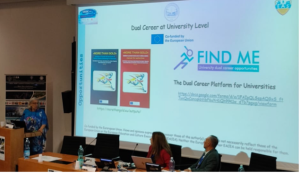
Myosotis Massidda and Filippo Tocco, organizers of the Conference, moderated the round table on dual caree. Alessandra Carucci (Rector’s Delegate for international relationships of the Universty of Cagliari), Laura Capranica (Rector’s Delegate for dual career of the Universty of Rome Foro Italico and EAS President), Thalia Darnanville (INSA, Lyon, France) Carlo Castagna (Pegaso Telematic University, Italy), Attilio Carraro (Free Uniersity of Bolzano, Italy), Susana Povoas (University of Maia, Portugal), Bruno Perra (President of the Sardinia Region Olympic Committee, Italy), Nardino Degortes (Coach of the Italian national track and field athletes 1984-2002), Fulvia Cappai (basketball player and student of law) discussed the challenges and opportunities of educational institutions and sport bodies in co-constructing a cohesive supportive entourage for sportspersons in pursuing their sport and academic careers.
Further information is available at https://www.ussic.it
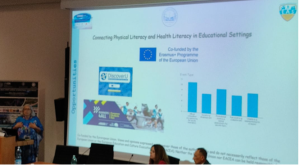
The DiscoverU, Find Me, More Than Gold, Runners4All, and SAMEurope projects are funded by the European Union. Views and opinions expressed are however those of the author(s) only and do not necessarily reflect those of the European Union or the European Education and Culture Executive Agency (EACEA). Neither the European Union nor EACEA can be held responsible for them.
On June 23, 2026, Olympic and Paralympic Day, Mr. Glenn Micallef, Commissioner for Intergenerational Fairness, Youth, Culture and Sport of the European Commission hosted the #Be Active EU Sport Awards 2026 Ceremony at Bozar in Brussels, Belgium. Mrs. Pia Ahrenkilde Hansen, Director-General for Education, Youth, Sport and Culture at the European Commission, offered the opening speech, highlighting that this important event recognizes the significance of projects and individuals committed to sport across Europe.
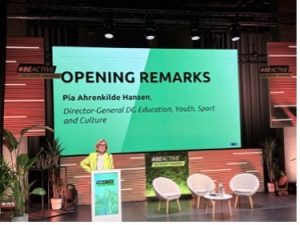
Then, Mr. Micalef discussed the principles and power of the European Sport Model with Mrs. Athena Michaelidou, Cypriot Minister of Education, Sport and Youth, who recently hosted the EU Sport Forum under the Cypriot Presidency of the Union.

In 2026, the Award encompassed five categories: Across Generations, Inclusion, Peace, Physical Activity, and Volunteering. From the 279 applications, an independent jury selected three finalists for each category. Information on the 15 finalists is available at https://sport.ec.europa.eu/whats-new/news/beactive-eu-sport-awards-first-ever-finalists-announced
During the event, the #Be Active EU Sport Awards 2026 were attributed to:
– Physical Activity category: Fit Senior programme of the Municipality of Oeiras (POR);
– Inclusion category: Planinec initiative of the Alpine Association of Slovenia (SLO);
– Volunteering category: Flow & Learn programme of the United Way Hungary (HUN);
– Across Generations category: Drava Cross League of the Running Club Marathon 95 Varaždin (CRO);
– Peace category: Run4Unity of the New Humanity International Association (ITA).
Mr. Djibril Diop and Mr. Gilles Coudoro provided an artistic hip pop and breakdance performance, whereas Sebastien Bellin, a professional basketball player and survivor of the 2016 Brussels terrorist attacks, testified how sport can help individuals overcoming major personal hardship.

The video of the event is available at https://player.clevercast.com/?account_id=AkN3yR&item_id=W9dMpj
As an official partner of the European Week of Sport and the #BeActive Campaign, EAS was represented by its President (Laura Capranica) and Honorary Treasurer (Mojca Doupona), who had the opportunity to meet project partners and representatives of the European Commission and the Executive Agency EACEA to share information on actual and future actions and strategic opportunities in the field of sport.
Ledger Live Black Screen: A Cautious Recovery Sequence for an Unresponsive Window
Fix Ledger Live Black Screen on Windows PC begins with confirming that the application window remains dark while the process is running, then isolating whether the cause is graphics rendering, USB communication, or a corrupted cache. This guide covers the mechanisms behind the failure, the users who encounter it, a comparison of resolution approaches, risks, a step-by-step verification procedure, and unsettled aspects. Each section provides actionable checks without relying on unverified claims.
What causes the unresponsive dark display in the desktop wallet companion?
The unresponsive dark display in the desktop wallet companion usually stems from a graphics rendering failure, a blocked USB link to the hardware device, or a corrupted local cache. The program window opens but paints no content. Graphics driver conflicts, missing system libraries, and outdated runtime components act as common triggers.
Graphics pipeline initialization
Graphics pipeline initialization can fail when the operating system’s display driver does not support the rendering backend used by the application. The program attempts to create a hardware-accelerated context; if that call returns an error, it falls back to software rendering, which may also fail silently. Checking the driver version and updating to a WHQL-signed release often resolves this stage. If the issue persists, disabling hardware acceleration through a configuration flag–where available–can isolate the cause.
USB communication handshake
USB communication handshake errors prevent the companion from receiving the device’s response, leaving the interface waiting indefinitely. The application queries the connected hardware wallet for a public key or address; if the driver or cable interrupts the transfer, the UI thread blocks. Swapping the cable, using a different port, or reinstalling the USB driver stack can restore the handshake. Version-specific steps for this check are published on the official source.
Local cache corruption
Local cache corruption occurs when the application’s stored blockchain data or settings become unreadable. The program tries to load a cached state, encounters malformed records, and aborts the render without an error message. Clearing the cache directory–typically found under the user’s AppData folder–forces a fresh sync. Back up any custom settings first, as this action removes local preferences. The official documentation provides the exact path for each release.
Affected users, hardware configurations, and trigger conditions
Users of the desktop companion on Microsoft’s operating system most often encounter the blank interface after a routine update, a driver change, or a hardware wallet firmware upgrade. The issue applies to both new installations and long-running setups. It occurs more frequently on machines with integrated graphics, older CPUs, or third-party antivirus software that intercepts display calls.
Trigger conditions after updates
Trigger conditions after updates arise because the application may require a newer runtime or a different display API than the previous version. An automatic update can replace shared libraries, leaving the program to call a function that no longer exists. Users typically see the dark window immediately after the update finishes. Rolling back to the prior release or installing the missing runtime from the official source restores rendering. This pattern is version-dependent and changes with each release.
Hardware wallet firmware mismatches
Hardware wallet firmware mismatches cause the companion to wait for a response that never arrives. When the device runs a firmware version that the desktop program does not recognize, the handshake protocol fails, and the interface remains dark. Users who skipped firmware updates or who use a device from a different production batch are most affected. Updating the firmware through the official vendor tool usually aligns the protocol. Always verify the firmware version before troubleshooting further.
Antivirus and endpoint protection interference
Antivirus and endpoint protection interference blocks the application’s attempt to create a graphics window or to read its cache. Some security suites inject code into every process, which can corrupt the rendering thread. Users on corporate-managed machines or with aggressive real-time scanning report this more often. Adding the program’s executable to the allowlist, or temporarily pausing protection, helps identify the cause. Permanent changes should follow the security policy of your organization.
Resolution approaches compared by effort, risk, and verification
The fastest resolution is often a clean restart of the application and the hardware device, but lasting remedies vary by root cause. Official troubleshooting steps, community workarounds, a full reinstallation, and switching to a web-based interface each carry different trade-offs. The table below compares these four paths on effort, security handling, main limit, and how to verify success.
The comparison uses criteria that decide which path fits which situation. Security handling matters because any method that asks for your recovery phrase or private keys is illegitimate. Effort to set up reflects the number of steps and required technical comfort. How to verify success tells you whether the blank interface has truly been resolved or merely hidden.
| Resolution path | Best for | Main limit | Security handling and verification |
|---|---|---|---|
| Official troubleshooting | Version-specific, supported fixes | Requires reading documentation | Uses only vendor-signed tools; verify by checking window renders |
| Community workarounds | Quick experiments on non-critical setups | Unverified steps may worsen issue | Ignores requests for seed phrases; verify by observing stable UI |
| Full reinstallation | Corrupted cache or broken install | Removes local settings and requires re-sync | Back up settings first; verify by fresh sync completing |
| Web-based interface | Avoiding local rendering conflicts | Requires browser and internet connection | Uses same hardware handshake; verify by checking balance display |
Official troubleshooting fits when the problem appears after an update and you can follow version-specific instructions. Community workarounds fit only for temporary diagnosis on a machine you can rebuild. Full reinstallation fits when cache or binary corruption is suspected, but you must accept a complete re-sync. The web-based interface fits when the local graphics stack is irreparably broken, though it depends on a stable browser. No path is universally superior; each has exceptions tied to your hardware and security policy.
Official troubleshooting versus vendor guidance
Official troubleshooting versus vendor guidance hinges on using the exact steps published for your version. The vendor tests each release against common graphics drivers and USB chipsets, so their sequence of checks is ordered by likelihood. Community guides often omit version checks and may recommend disabling security features. Following the official path reduces the chance of introducing new faults. The trade-off is that official steps can lag behind rapid driver or OS updates.
Reinstallation and cache removal scope
Reinstallation and cache removal scope determines how much local data you lose. A full uninstall removes the program, its cache, and any custom nodes or settings. After reinstallation, the application must re-download the entire blockchain, which can take hours. A targeted cache deletion–if the official documentation provides one–preserves settings but may leave other corrupted files. The choice depends on whether you value speed or completeness. Always export your watch-only accounts before proceeding.
Which mistakes worsen the dark interface and what are the limits?
The most damaging mistake is entering your recovery phrase into any pop-up or third-party tool that appears during troubleshooting. Other limits include the irreversibility of blockchain transactions: once a re-sync finishes, any pending operations execute. Common errors involve clearing the wrong folder, using unverified USB cables, and ignoring driver signatures. Each action has a safe alternative published by the vendor.
Recovery phrase exposure risks
Recovery phrase exposure risks arise when a user, frustrated by the dark interface, searches for a remedy and lands on a malicious site. No legitimate resolution method ever asks for your 24-word backup. The hardware wallet is designed to keep the phrase offline; typing it into a computer defeats that design. If you have already entered it, move all funds to a new wallet immediately. That outcome is irreversible.
Irreversible blockchain actions
Irreversible blockchain actions occur when the companion, after a temporary remedy, broadcasts a transaction that was queued before the display failed. The user may not see the confirmation prompt. Once confirmed, the transfer cannot be reversed. To avoid this, disconnect the hardware device until the interface renders correctly. Then review any pending operations in the official software. Never approve a transaction on the device display if the computer display is unreliable.
Wrong folder deletion and driver rollback
Wrong folder deletion and driver rollback can introduce new faults. Removing a shared library or a system folder instead of the application’s cache may break other programs. Rolling back a graphics driver to an older version can disable security patches. Always note the exact path from the official source and create a system restore point before making changes. If you cannot find the path, stop and contact support.
How to verify a safe resolution for the unresponsive dark interface on a PC?
This procedure verifies that the dark interface on your Microsoft operating system has been resolved without exposing secrets or risking funds. Have ready: your hardware wallet, the official desktop application installer, a known-good USB cable, and administrative access to your user account. The steps confirm rendering, USB handshake, and cache integrity in sequence.
Step 1: Disconnect the hardware wallet and restart the computer.
Disconnect the hardware wallet and restart the computer. This clears any stuck USB state and ensures the graphics driver initializes from a clean boot.
Step 2: Launch the desktop program without the device connected.
Launch the desktop program without the device connected. If the window renders correctly, the failure lies in the USB handshake rather than the graphics pipeline.
Step 3: Clear the application’s cache using the official path.
Clear the application’s cache using the official path. A corrupted cache is a common cause of silent render failures, and removing it forces a fresh state.
Step 4: Update the graphics driver from the manufacturer’s website.
Update the graphics driver from the manufacturer’s website. A signed, current driver eliminates known rendering bugs that affect many desktop applications.
Step 5: Reconnect the hardware wallet and observe the interface for two minutes.
Reconnect the hardware wallet and observe the interface for two minutes. A stable display with no blank periods confirms that the resolution holds during active communication.
Unsettled aspects and common misconceptions across releases
The exact trigger for the dark interface remains unsettled when multiple causes overlap; a graphics fault and a USB fault can produce identical symptoms. Official guidance changes with each release, so a fix that worked for version 2.0 may not work for version 2.1. Common misconceptions include believing the problem is hardware failure when it is software-only.
Version-dependent rendering backends
Version-dependent rendering backends mean that the application may switch from one graphics API to another between releases. A configuration that worked with one version can fail silently with the next. The vendor publishes the supported backends in the release notes. If you cannot find your version’s notes, assume the behavior may have changed. Checking the official source for your exact build is the only reliable way to know.
Confusion between blank display and device lock
Confusion between blank display and device lock occurs when users see a dark window and assume the hardware wallet is frozen. In reality, the device may be waiting for a PIN or a confirmation that the software never displays. Pressing buttons on the device without the interface can lead to unintended approvals. Always verify the device display’s own prompts before taking any action. The two failures have different remedies.
Reports of spontaneous resolution
Reports of spontaneous resolution appear in community forums, but they lack controlled evidence. A blank interface may resolve after a reboot because the graphics driver reloaded, not because time healed the issue. Without a reproducible trigger, such reports cannot guide troubleshooting. Treat any claim that lacks version numbers and step logs as anecdotal. The official source remains the baseline for verified behavior.
Fix Ledger Live Black Screen on Windows PC often traces to graphics driver mismatches or hardware acceleration toggles. A dark display after launch means the rendering pipeline fails before the interface draws. Check the driver version and the acceleration flag before reinstalling the wallet or resetting the machine.
Check Windows Graphics Drivers and Hardware Acceleration Settings for Ledger Live
Checking graphics driver versions and hardware acceleration state resolves most rendering stalls. Open Device Manager, expand Display adapters, note the driver date and version. Then open the wallet application’s settings, find the hardware acceleration toggle, and record whether it is on or off. Compare both against the vendor’s current recommendations.
Driver version identification via Device Manager
Device Manager lists the exact graphics driver version installed on the host machine. Right-click the adapter, open Properties, and switch to the Driver tab. The version string, date, and provider appear there. An older version than the vendor’s latest release can miss API calls the wallet uses. A newer but unstable build can introduce rendering regressions. Automatic updates may install a build that conflicts with the application. Record the numeric version string and date before any change.
Hardware acceleration flag location in the wallet’s preferences
The acceleration flag sits inside the application’s advanced or performance settings. When enabled, the wallet uses the GPU for drawing; when disabled, it falls back to the CPU. A mismatch between this flag and the driver’s capabilities produces a dark frame or a frozen splash. Some releases hide the toggle under a Help or Advanced menu. Check the exact label, which may appear as “Use hardware acceleration” or similar. Toggle it only after recording the prior state.
Baseline check before and after driver change
Establish a baseline: capture current driver version, acceleration state, and application version. Change one variable at a time. If the dark display persists after toggling acceleration, revert the flag and update the driver. If the display returns after a driver update, keep that version and re-enable acceleration. This isolation prevents chasing two causes at once. No single order works for every machine, so document each step.
Who needs to adjust graphics driver versions and acceleration flags, and when?
Users on machines with integrated GPUs, recent OS feature updates, or multiple monitors benefit most from these adjustments. The need arises after a sudden dark display, a frozen splash, or a driver update notification. Apply the check before reinstalling the wallet or resetting the entire system.
Integrated versus discrete graphics adapters
Integrated adapters share system memory and follow a different driver cadence than discrete cards. Intel, AMD, and NVIDIA each publish separate packages. A laptop with switchable graphics may route the wallet through the integrated chip by default. Discrete cards have dedicated video memory and often receive longer support. After a major OS update, integrated drivers are more likely to fall behind. Check which adapter the wallet actually uses in its GPU preferences.
Multiple display configurations and scaling factors
Multi-monitor setups with mixed refresh rates or per-monitor scaling trigger rendering faults. The acceleration flag interacts with DPI scaling, so a window moved between displays can lose its draw context. Connect only the primary monitor when testing. Set all displays to the same refresh rate if possible. After adding a new monitor, re-check the acceleration state. A wallet that renders on one screen may fail on another with different scaling.
Remote desktop and virtual machine sessions
Remote or virtual sessions lack direct GPU access, so hardware acceleration often fails. When running the wallet through RDP, Hyper-V, or another hypervisor, disable acceleration first. The virtual adapter presents a generic driver that cannot execute the same rendering calls. If the dark display appears only in remote sessions, the flag is the cause. Local sessions may work without any change. Always test locally before adjusting drivers.
How do driver updates compare with toggling acceleration for rendering faults?
Driver updates address low-level API mismatches, while toggling acceleration changes which rendering path the application uses. Updates are broader and riskier; toggling is reversible and instant. Start with the toggle if the fault appeared after an app update. Start with the driver if the fault appeared after an OS update.
The table compares three corrective routes by effort, reversibility, and typical trigger. All routes are published on the official source for exact version numbers.
| Route | Effort | Reversibility | Typical trigger |
|---|---|---|---|
| GPU driver update | Download and install, then restart | Rollback via Device Manager | After OS feature update |
| Hardware acceleration toggle | One click in preferences | Instant, same menu | After wallet app update |
| Clean driver reinstall | Uninstall, reboot, reinstall | Low without restore point | After failed driver update |
| App-specific GPU override | Edit per-application setting | Reset to default | After adding new display |
Driver update fits when the fault follows an OS change and the current version is older than the vendor’s latest. The toggle fits when the fault follows a wallet update and the driver is current. Clean reinstall fits only after a failed update and with a restore point ready. App-specific override fits when multiple displays cause inconsistent rendering. Exceptions exist for laptops with OEM-customized drivers, where generic updates may break switchable graphics.
Driver update trade-offs: breadth versus stability
A driver update replaces the entire graphics stack, which can fix multiple applications at once. The trade-off is stability: a new build may introduce regressions for the wallet or other programs. Laptop vendors often customize drivers for power management and display routing. Installing a generic chip-vendor driver over an OEM build can break those customizations. Use the laptop manufacturer’s support page when available. Keep a restore point before any update. If the wallet still fails, roll back using Device Manager.
Acceleration toggle: instant but version-dependent
Toggling acceleration changes only one setting and takes effect after a restart. It is version-dependent because some wallet releases ignore the flag or cache it across sessions. If the flag does not respond, clear the application’s cache or reinstall the wallet. The toggle cannot fix a driver that lacks required API support. It also cannot fix a hardware limitation, such as an old GPU without the needed instruction set. Use the toggle as a diagnostic first, then move to driver changes if it fails.
Risks and common mistakes from mismatched GPU settings
Forcing an incompatible driver or leaving acceleration enabled on unsupported hardware can cause persistent dark display, application crashes, or system instability. Common mistakes include updating drivers from unofficial sources, ignoring laptop vendor customizations, and toggling acceleration without recording the prior state.
Installing generic drivers over OEM-customized builds
Laptop makers modify drivers for power and display routing. A generic driver from the chip vendor may break switchable graphics, causing the wallet to render on the wrong adapter. The result is a dark display even though the driver version appears newer. Check the laptop support site for a validated package. If only a generic driver is available, disable acceleration before installing it. After installation, test the wallet with and without acceleration. Revert if the display fails.
Leaving acceleration on after a failed render
If the wallet produces a dark frame, the acceleration flag may be stuck in an enabled state. Some versions cache the flag and do not re-read it after a crash. Clear the application’s cache and restart the wallet. If the dark frame persists, disable acceleration from a safe mode or command-line flag. Then re-enable it after a driver update. Never leave acceleration on when the driver is known to be incompatible.
Skipping the rollback plan
Always create a restore point before changing a driver. If the new driver worsens the display, rollback needs a saved state. Device Manager offers a rollback button only for the previous driver. A system restore point covers the entire registry and driver store. Without one, a clean reinstall becomes the only recovery path. Record the current driver version and date in a text file. This record lets you reinstall the exact prior build if needed.
How to verify GPU driver and acceleration state before launching the wallet?
This procedure confirms whether the current graphics stack can render the wallet interface. Have ready the device manager, the app’s settings menu, and a note-taking tool. Complete all five steps before opening the application. If any step fails, stop and correct that item.
Step 1: Open Device Manager and expand the Display adapters category.
Open Device Manager and expand the Display adapters category. This reveals the exact adapter model and its driver provider, which determines available acceleration paths.
Step 2: Right-click the adapter, choose Properties, and open the Driver tab.
Right-click the adapter, choose Properties, and open the Driver tab. The version string and date tell you whether the installed build matches the vendor’s current release.
Step 3: Launch the wallet application but do not connect to any network or enter credentials.
Launch the wallet application but do not connect to any network or enter credentials. Access its preferences and locate the hardware acceleration toggle without triggering a render cycle that could freeze.
Step 4: Record the current acceleration state and the application version number.
Record the current acceleration state and the application version number. This baseline lets you revert one change at a time if the display remains dark.
Step 5: Toggle the acceleration flag, restart the application, and observe the first frame.
Toggle the acceleration flag, restart the application, and observe the first frame. A successful render confirms the flag was the cause; a repeated failure points to the driver instead.
What remains uncertain about driver compatibility and future updates
Driver compatibility changes with each OS build, GPU firmware, and application release. No single version works for all machines. The vendor publishes supported combinations on its official source. Users must re-check after major updates. Unsettled areas include automatic driver rollouts and per-monitor acceleration behavior.
Automatic driver delivery via OS update channels
OS update channels may push a driver that breaks rendering for the wallet. These rollouts are staged by region and hardware ID, so two identical machines can receive different versions. Check the update history after a sudden dark display. Delay feature updates on machines used for wallet access if stability matters. The update channel does not publish a compatibility list for third-party applications. Test the wallet after every cumulative update.
Per-monitor acceleration behavior
Acceleration may apply globally or per display, depending on the wallet version and driver control panel. Mixed DPI setups cause inconsistent results because the flag interacts with scaling. Some releases apply acceleration only to the primary monitor. Others ignore the flag entirely for secondary displays. No universal setting exists across vendors. Test each monitor configuration separately. Record which display works and which fails.
Vendor deprecation of older GPU families
Older GPU families lose driver support when the vendor moves to a new architecture. When updates stop, hardware acceleration may break without a fix. The only remaining options are disabling acceleration or replacing the graphics hardware. Check the vendor’s lifecycle page for the exact end-of-support date. The wallet’s official source may list minimum GPU requirements. If the GPU is unsupported, the toggle is the only reliable workaround.
Q&A:
Ledger Live opens to a black window on my Windows 11 PC after I enter my PIN. What should I check before reinstalling?
Check display scaling and GPU acceleration before reinstalling. Close Ledger Live from Task Manager. Right-click the Ledger Live shortcut, choose Properties, then Compatibility. Try turning on “Disable fullscreen optimizations” and “Run this program as administrator.” If you have an NVIDIA or AMD control panel, set Ledger Live to use integrated graphics instead of the dedicated GPU. Also check that Windows display scaling is at 100% for the correct monitor. Many black-screen reports on Windows 11 are tied to a second monitor, HDR, or a refresh rate above 60 Hz. Unplug extra monitors, set the main display to 1920×1080 at 60 Hz, then reopen Ledger Live. If the app appears, reconnect displays one at a time to find the trigger.
I already restarted Windows and reinstalled Ledger Live, but the window is still black. Could my graphics driver be the cause?
Yes, graphics drivers are a common cause on Windows PCs. Reinstalling Ledger Live alone will not fix a driver conflict. Go to the manufacturer’s website for your GPU or laptop model and download the current driver. Do not rely on Windows Update for the latest version, because it often ships an older driver. After installing, restart your PC. Then open Ledger Live. If the black screen remains, roll back to the previous driver or install the Studio/Pro driver version for NVIDIA cards. Some users also need to disable DirectComposition or hardware acceleration for Ledger Live through the app’s compatibility settings. If you use remote desktop software, disconnect it before launching Ledger Live, because remote sessions can trigger the black window.
Does a black screen mean my Ledger device or recovery phrase is compromised? I am worried about my crypto.
No. A black screen in Ledger Live on Windows is almost always a display or software problem, not a sign that your crypto is at risk. Ledger Live is only a viewer and bridge. Your private keys stay on the Ledger device and never leave it. A black window does not change your accounts, balances, or recovery phrase. Do not enter your recovery phrase into any app, website, or chat. If you want to check balances, you can use a different computer, a supported mobile device, or a block explorer with your public address. As long as your Ledger device turns on, accepts your PIN, and shows the correct accounts, your funds are safe. If the device itself shows a black screen, then the problem is with the hardware, not Ledger Live.
How do I do a clean reinstall of Ledger Live on Windows without losing my accounts or settings?
Before removing anything, back up your Ledger Live data folder. In File Explorer, type %appdata% and open the Ledger Live folder. Copy it to a safe place. Also export your account list if the app allows it, though most accounts can be added again from your Ledger device. Then close Ledger Live from Task Manager. Go to Settings > Apps > Installed apps, find Ledger Live, and remove it. After that, delete any leftover Ledger Live folders in %appdata% and %localappdata%. Restart Windows. Download the installer only from the official Ledger website. Install it, open the app, and add your accounts again by connecting your Ledger device and entering your PIN. You do not need to restore your recovery phrase unless you are setting up a new device or have no other way to access the accounts. A clean reinstall will not wipe the crypto on your Ledger device.
Ledger Live flickers or shows a black screen only when I move the window to my second monitor. Is there a Windows setting that can stop this?
Yes. This often happens with mixed refresh rates or HDR settings. Open Windows Settings > System > Display. Select each monitor and set the same scaling percentage, such as 100%. Turn off HDR for both displays if you do not need it. Set both monitors to the same refresh rate, for example 60 Hz. Next, open the NVIDIA Control Panel, AMD Software, or Intel Graphics Command Center and set Ledger Live to run on the same GPU as your main display. In the Ledger Live shortcut, go to Properties > Compatibility and enable “Disable fullscreen optimizations.” If the window still goes black, try running Ledger Live in windowed mode instead of fullscreen. You can also unplug the second monitor, launch Ledger Live, and then plug it back in. If the problem only appears with one cable or adapter, replace that cable or use a different port on your PC.
Why does Ledger Live open to a black screen on my Windows PC, and what can I do first?
A black window in Ledger Live usually means the app started, but its interface did not draw correctly. Common causes are a stale background process, a graphics driver conflict, or a corrupted local cache. Close Ledger Live, open Task Manager, and end every Ledger Live process. Restart Windows. Open Ledger Live again. If the window stays black, right-click the Ledger Live shortcut, choose Properties, open the Compatibility tab, and turn on Run this program as an administrator. Also set the display scaling to 100% in Windows Settings > System > Display. These steps remove a few simple blockers before you move to deeper fixes.
I already reinstalled Ledger Live, but the black screen is still there on Windows 10/11. What else can I try?
Reinstalling does not always clear user data. Close Ledger Live and end its processes in Task Manager. Rename the Ledger Live data folder instead of deleting it. Press Windows Key + R, type %APPDATA%, and press Enter. Find the Ledger Live folder. Rename it to Ledger Live backup. Start Ledger Live again. The app will create a fresh folder and resync your accounts from the blockchain. Your crypto stays on your Ledger device; the app data folder does not hold your private keys. If the black screen remains, update your graphics driver from Intel, AMD, or NVIDIA. Disable GPU acceleration by making a shortcut with –disable-gpu at the end of the Target field. Example: “C:\Program Files\Ledger Live\Ledger Live.exe” –disable-gpu. Save the shortcut, then open Ledger Live through it. You can also unplug extra monitors and set the main screen to 100% scaling.
Could Windows display settings, antivirus, or a failed update be causing the Ledger Live black screen, and how do I check those safely?
Yes. Windows display settings can stop an Electron app from drawing its window. Antivirus or firewall tools can block the app’s local service or network calls, which may leave a black frame. A failed update can also leave mixed files. Check display settings first: set scaling to 100%, set the resolution to the monitor’s native value, and change the refresh rate to 60 Hz if you use a high-refresh screen. Test with a single monitor. Next, check antivirus and firewall logs for blocks on Ledger Live. Add Ledger Live to the allowed list, then restart the app. If you use a third-party security suite, pause its web shield or app control for a short test. Do not turn off all protection for a long time. For updates, download the newest installer from the official Ledger website. Do not use a mirror or a third-party download page. Install it over the current version. If the black screen appears only after a Windows update, open Windows Update > Update history, uninstall the latest quality update, restart, and test Ledger Live again. You can reinstall that update later. If nothing works, collect Ledger Live logs from %APPDATA%\Ledger Live\logs and contact Ledger support. Include your Windows version, GPU model, and a short description of when the black screen appears. Never share your 24-word recovery phrase with anyone, including support staff.

On 9–10 June 2026, the FIND ME: University Dual Career Opportunities Erasmus+ Sport project consortium gathered in Trento, Italy, for a productive two-day transnational meeting hosted by the Partner OKKAM SRL. Representatives of all consortium organizations attended the meeting, reaffirming their strong commitment to supporting dual career opportunities for university student-athletes across Europe.

During the meeting, partners reviewed the progress achieved throughout the project and conducted a comprehensive analysis of the completed deliverables. Particular attention was given to the outcomes produced within the various work packages, including research activities, stakeholder engagement, development of educational resources, and the digital platform being developed to support student-athletes in balancing academic and sporting commitments.
The consortium also discussed the final phase of project implementation and agreed on the key actions required in the coming months. Partners identified remaining tasks, established timelines for their completion, and coordinated efforts to ensure the successful achievement of all project objectives before the project’s conclusion. Special emphasis was placed on dissemination activities, sustainability measures, and the promotion of project results among universities, sports organizations, policymakers, and student-athletes.
A significant focus of the meeting was the further development and launch of the FIND ME online platform. This project is particularly important and innovative because it aims to create the first European-wide online platform dedicated to dual career opportunities for student-athletes. By bringing together information on educational pathways, support services, career opportunities, and good practices from different countries, the platform will provide a unique resource for student-athletes, universities, employers, and sports organizations throughout Europe.
Universities willing to enhance the visibility of their Dual Career programmes and/or services and provisions for athletes can share information by completing in about 5-10 minutes a short survey at https://docs.google.com/forms/d/e/1FAIpQLSepAQGxS_ftTyxQwCancqkbVibF6uYrKiQh99K1w_dTb7pgxg/viewform
The meeting provided an excellent opportunity for partners to exchange experiences, share good practices, and strengthen collaboration. The positive atmosphere and active participation of all consortium members contributed to constructive discussions and effective planning for the final stage of the project.
The FIND ME consortium remains dedicated to enhancing dual career support systems and creating sustainable opportunities that enable student-athletes to succeed both in education and in sport, while establishing a lasting European legacy through this pioneering digital platform.
The FIND ME platform will be presented at the 23rd EAS Conference to be held in Oulu, Finland next October 5-7, 2026 where presentations of dual career progress in Europe will be shared and the EAS Bord election for the 2027-2030 term will take place (information available at https://www.dualcareer.eu/call-for-abstracts-and-nominations-for-eas-presidency-and-executive-board-members-for-the-2027-2030-term/).
The FIND-ME: University Dual Career Opportunities project [ERASMUS+Sport, 101134043) is funded by the European Union. Views and opinions expressed are however those of the author(s) only and do not necessarily reflect those of the European Union or the European Education and Culture Executive Agency (EACEA). Neither the European Union nor EACEA can be held responsible for them.
On May 27-28 in Strasourg, France, the Enlarged Partial Agreement on Sport (EPAS) of the Council of Europe held its 20th Annual Plenary Meetings of its Governing Board and Consultative Committee.

A joint session the Governing Board, Consultative Committee and youth participants addressed the “Youth perspective Youth Perspective for Safe and Healthy Sport” in
Preparation of the 19th Council of Europe Conference of Ministers Responsible for Sport to be held in Monaco next November 3-4, 2026. In addition to the expectations, proposals, and recommendations of young people for the Governing Board meeting, two sessions addressed Safer and Healthier sport, respectively. As a panellist of the second session, Laura Capranica – President of EAS -urged actions to bridge the gap between the academic institutions and the sport bodies to protect the most vulnerable youth athlete population and to ensure a holistic development of talents.

During its in-camera meeting, the Consultative Committee elected the President, the Vice-President and the four Members of the Bureau. Charlotte Girard Fabre (International Federation of Sport Officials, IFSO), was elected Chair, Patrik Perosa (International Dance Organization, IDO), was elected Vice-Chair, whereas elected Members were Annamarie Phelps (European Olympic Committees, EOC), Guido Battaglia (Centre for Sport and Human Rights, CSHR), James Ogilvie (Union of European Football Associations, UEFA), and Marie Denitton (European Non-Governmental Sports Organisation, ENGSO), the latter also assigned the role of Gender Equality Officer.

During the two days, the multi-lateral cooperation across Member States and sports organisations allowed to examine past actions and programmes, and to propose future strategic objectives in the field of sport, especially related to further developments of the recommendations of the Revised European Sport Charter, safe sport environments through safeguarding and anti-discrimination, sustainable sport facilities, and artificial intelligence.
The Annual EAS Conference on Dual Career will take place from 5–7 October 2026 in Oulu, Finland, bringing together educational institutions, practitioners, policy makers, researchers, and academics for three days of inspiring presentations, discussions, and networking opportunities.
The conference theme, “The Nordic Dual Career and Transitions Between Educational Levels”, will provide an important platform to exchange ideas, share innovative practices, and strengthen international collaboration within the EAS community. Furthermore, during the General Assembly the candidates for EAS Presidency and Executive Board for the 2027-2030 term will be elected.
Conference Venue
Lasaretti Conference Center
Kasarmintie 13b
Oulu, Finland
Host Organisations: Kastelli Upper Secondary Sports School, City of Oulu
Call for Abstracts
Participants are warmly invited to submit abstracts for oral and poster presentations related to dual career research and practice. Contributions addressing innovative projects, case studies, athlete support systems, educational pathways, and policy developments are especially welcome.
Abstract Submission Guidelines
- Abstracts should be submitted in PDF format.
- Recommended abstract length: approximately 250–300 words.
- Please include:
- Title of the presentation
- Author(s) and affiliation(s)
- Contact email of the presenting author
Submission Procedure
Abstracts should be submitted by email to: eas2026oulu@ouka.fi
Important Dates
- Abstract submission deadline: 31 August 2026
- Notification of acceptance: 9 September 2026
Registration Information
Further conference information and registration details are available at: EAS 2026 Oulu Conference Website
Call for Nominations
The EAS President and the Executive Board Members present their compliments to the organisations which are Members of EAS (International, National or Regional Athlete Student Associations, Federations or Organisations; Universities; Sport Organisations; Federations or Councils; Olympic Committees; Local Government sports departments; and suitable other properly constituted bodies).
Delegates of EAS Member organizations can participate in the nomination and voting process to the following positions for the 2027 – 2030 term:
- The President
- Eight Executive Board Members
Delegates of two EAS Member Organizations can nominate one representative of a EAS Member Organization in the position of the President or in the position of a Board Member, by returning the Nomination Form to info@dualcareer.eu before 23:59 Central Standard Time on June 30, 2026.
To vote the EAS President and the Members of the Board for the 2027 – 2030 term, one Delegate of EAS Member Organizations must participate in person to the voting process to be held during the General Assembly at the 2026 EAS Conference in Oulu, Finland on October 5-7, 2026.
If you are unsure of your membership status or have not received the voting materials, please contact the EAS Treasurer at Mojca.Doupona@fsp.uni-lj.si

REG. NUMBER: Voluntary Organisation registration VO/1270
PIC NUMBER: 913459865
Email: info@dualcareer.eu